
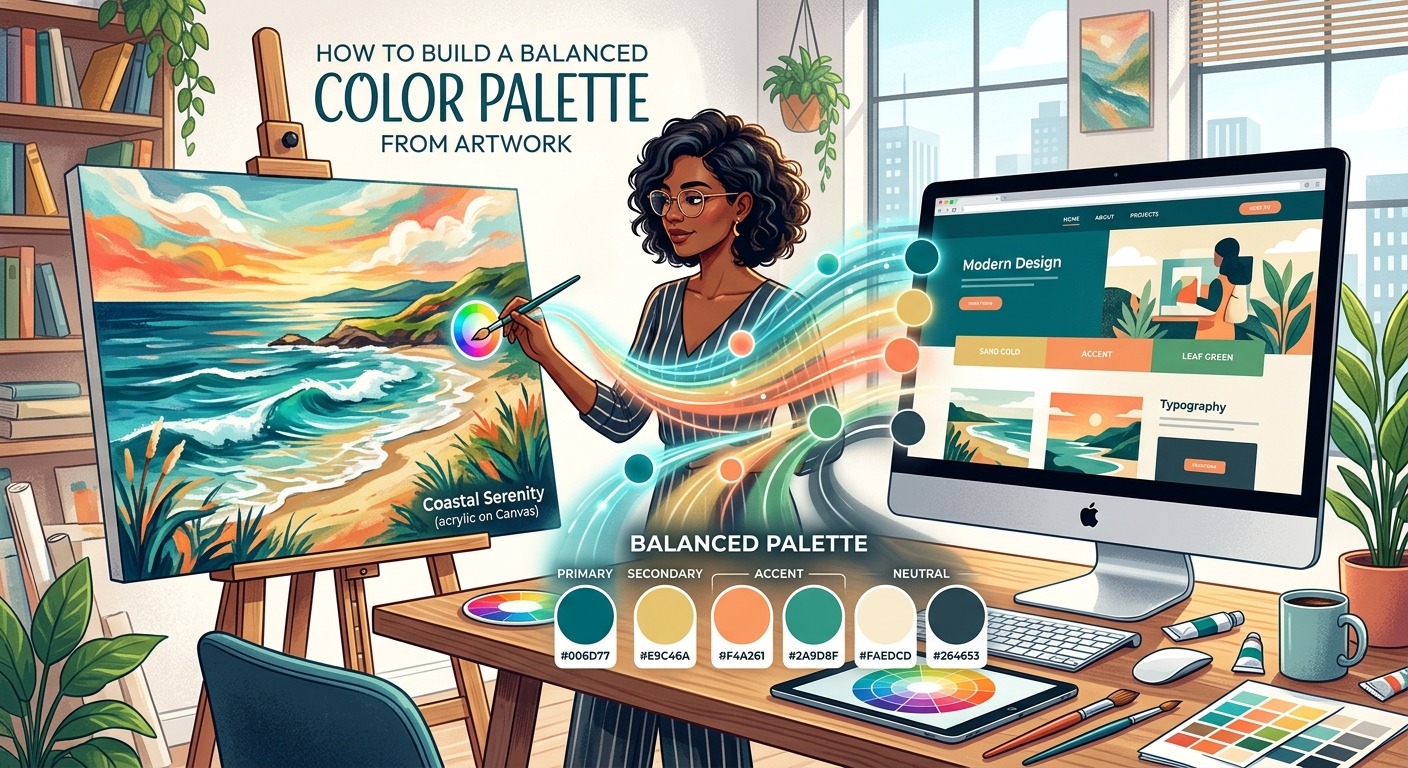
A painting can make five colors feel perfectly at home together. Put those same colors into a website, and suddenly the buttons compete with the headings, the background feels heavy, and the text becomes hard to read. The colors have not changed. Their jobs have.
Building a web palette from artwork means translating its visual relationships into an interface. You want to keep the mood that caught your attention while giving each color a useful role. Start with the artwork’s dominant, supporting, and accent colors. Then adjust their lightness, saturation, and placement until they help people read, move through the page, and recognize what they can click.
Your Palette Plan
- Extract colors by their role in the artwork.
- Adapt each shade to a clear interface purpose.
- Check contrast and hierarchy on real page layouts.
Choose Artwork With Relationships You Can Use
Start with an image whose overall feeling suits your project. A quiet landscape might suit a reading-focused website. A bold abstract composition might offer useful tension for a creative portfolio. Treat these as starting points, though. Color associations depend on context, culture, and the surrounding design.
Look beyond individual shades. Notice how the artist distributes them. Does a pale background give a dark shape room to stand out? Does one warm mark interrupt a mostly cool composition? Those relationships often provide more useful direction than a collection of attractive hex codes.
Choose a reasonably clear digital image for sampling. Reflections, compression, and uneven lighting can shift the colors in a photograph of physical artwork. Your extracted palette represents that image file, which may differ from the original piece. That is fine for inspiration, provided you judge the result on screen.
Before opening an eyedropper, write a short description of the mood. “Quiet, earthy, with a bright focal point” gives you a useful editing guide. If later changes produce a loud, glossy interface, you can spot the drift.
Separate Dominant, Supporting, and Accent Colors
The dominant color usually occupies a large area or establishes the artwork’s overall impression. It might be a broad cream background, a blue sky, or a deep green field. This color often suggests the direction for your website’s main surfaces.
Supporting colors connect the composition. They appear in secondary shapes, shadows, or repeated details. Their job is to give the dominant color depth without constantly pulling attention away from it. On a website, they can inform cards, secondary sections, borders, and quieter controls.
The accent color creates a focal point. It may occupy only a tiny part of the image. A red flower in a muted scene can carry more visual weight than a large gray area. That makes it a promising starting point for a primary action or a selected state.
These roles are about perception as much as surface area. A palette extraction tool might rank colors by pixel frequency and overlook the small detail that makes the artwork memorable. Use its output as a draft. Your eye still needs to identify what leads, what supports, and what catches attention.
Extract a Small Set Before Editing
- Sample several broad areas to find the dominant color family.
- Collect two supporting shades from repeated shapes or shadows.
- Choose one accent from a detail that draws your attention.
- Remove near-duplicate samples that do not need separate roles.
- Save the remaining colors beside the artwork for comparison.
Sample from the middle of a fairly uniform area. Edges may contain blended pixels, and a tiny highlight can misrepresent a larger shape. If several samples differ slightly, pick the one that best captures the area’s overall appearance.
A useful starting set might contain four or five colors. You can build lighter and darker variants later. Keeping the first set small makes the artwork’s underlying structure easier to understand.
Adapt the Colors Before Assigning Interface Roles
An artwork does not need to accommodate paragraphs, form fields, and navigation. Your website does. A rich blue that looks beautiful across half a painting may feel tiring behind a long article. A soft yellow may work as a painted highlight but disappear as a small icon on white.
Preserve the color family while changing the shade to suit its task. A medium green can become a very pale green surface, a darker button background, and a deep green text color. These variants retain a shared character while meeting different needs.
Watch lightness first. It helps establish separation between surfaces, text, and controls. Then adjust saturation. Large areas often benefit from quieter colors, while a smaller action can carry more intensity.
Add neutrals when the artwork does not provide them. A warm off-white and a dark charcoal may be all you need. Derive them loosely from the artwork’s temperature so they feel connected. A slightly green charcoal can sit comfortably beside sage and cream without looking obviously tinted.
Translate an Earthy Artwork Into a Web Page
Browsing print art can help you practice spotting these relationships across different compositions. For this example, imagine an abstract piece with a broad cream field, muted sage shapes, dark green lines, and a small terracotta circle. This is a hypothetical palette, rather than a claim about a specific image.
The cream establishes the atmosphere. Sage supports it. Dark green provides structure. Terracotta catches the eye. Those four relationships give us a useful foundation for a portfolio homepage with an introduction, project cards, and a contact action.
Artwork Colors and Their Web Roles
| Artwork Color | Web Adaptation | Interface Purpose |
|---|---|---|
| Cream, #E8DDC8 | Paler cream, #F7F3EA | Main page background |
| Sage, #8D9D82 | Light sage, #E6EBE1 | Supporting panels and project cards |
| Dark green, #293B32 | Retained as #293B32 | Headings and body text |
| Terracotta, #C76B4B | Deeper terracotta, #97452F | Primary button background with white text |
Use the pale cream across most of the page. It carries the artwork’s warmth without making every section feel dense. Place project cards on light sage panels, then use dark green for their titles and descriptions.
Reserve deeper terracotta for the main contact button. The original terracotta can remain in decorative details, where it does not need to support text. For a highlighted sentence, try a pale terracotta background with dark green text, then check that pairing before use.
The accent now has a purpose. It helps a visitor spot the next action. If you also apply it to every heading, icon, border, and card, that signal becomes much weaker.
Make Readability a Requirement for Every Pair
A color cannot pass a contrast check by itself. Contrast belongs to a foreground and background pair. Dark green text on cream needs one check. The same text on sage needs another. Button labels, navigation links, and helper text need their own checks too.
The W3C’s contrast requirements specify at least 4.5:1 for normal text at WCAG Level AA. Large text requires at least 3:1. Large text means at least 18 points, or 14 points when bold, roughly 24 CSS pixels or 18.7 CSS pixels respectively.
Use a contrast checker with your actual hex values. If a pair fails, darken the foreground, lighten the background, or choose another pairing. Aim for some breathing room above the threshold instead of relying on a barely passing result.
Check text over images at the weakest part of the background. A heading may read clearly over a dark tree and disappear where the image contains pale sky. A solid text panel often gives you more predictable results than an overlay that leaves substantial variation underneath.
Color also needs help communicating meaning. Underline text links. Pair error colors with an explanatory message. Give selected controls a visible mark or shape change. People should be able to understand the interface without identifying a particular hue.
Balance the Palette Through Placement and Scale
A balanced palette does not require matching amounts of every color. It requires a clear relationship between them. Let quiet surfaces occupy most of the layout. Use supporting colors to organize sections. Give the strongest accent less space so it remains noticeable.
The familiar 60-30-10 proportion can serve as a loose sketch, but it is not a requirement. A reading page may need far more neutral space. A visual portfolio may let photographs supply much of the color. Judge the distribution through the page’s actual content.
Size and placement matter too. A small saturated button can draw attention within a large pale panel. A full-width saturated section can dominate the page even if its color appears nowhere else.
Build a sample screen with a real heading, paragraph, project card, text link, and primary button. Read it from top to bottom. Notice where your attention lands first. If a decorative block wins over the main action, reduce its intensity or area.
Give the Palette Consistent Behavior
Once the basic screen works, name colors by purpose. Labels such as “page background,” “main text,” and “primary action” help you apply them consistently. They also make future edits easier because you can change a role without searching for every use of a particular hex code.
Plan hover, focus, active, and selected states before calling the palette finished. A hover shade must still support readable button text. Keyboard focus should remain visible against the surfaces where the control appears.
Test a narrow mobile layout as well. Stacked cards can create a much larger block of supporting color than they did on desktop. A balanced wide screen may feel heavy once those surfaces fill the viewport.
A grayscale preview can reveal whether major sections and actions depend too heavily on hue differences. Use it alongside contrast checks and normal viewing. It offers another perspective on the layout, rather than a complete accessibility assessment.
Keep the Artwork’s Character in Every Decision
The strongest artwork-inspired palettes preserve relationships. A calm field still gives a bold detail room to stand out. A dark line becomes readable text. A supporting shape becomes a panel that helps organize information.
Return to your original mood description after each major adjustment. Check whether the page still feels connected to the artwork and whether every color helps the visitor do something. You may need a paler background, a deeper accent, or fewer competing surfaces.
That is the craft of translation. Keep the atmosphere that drew you to the artwork, then shape its colors around reading, navigation, and action. Your palette will feel cohesive because its colors share both a visual origin and a clear purpose.
