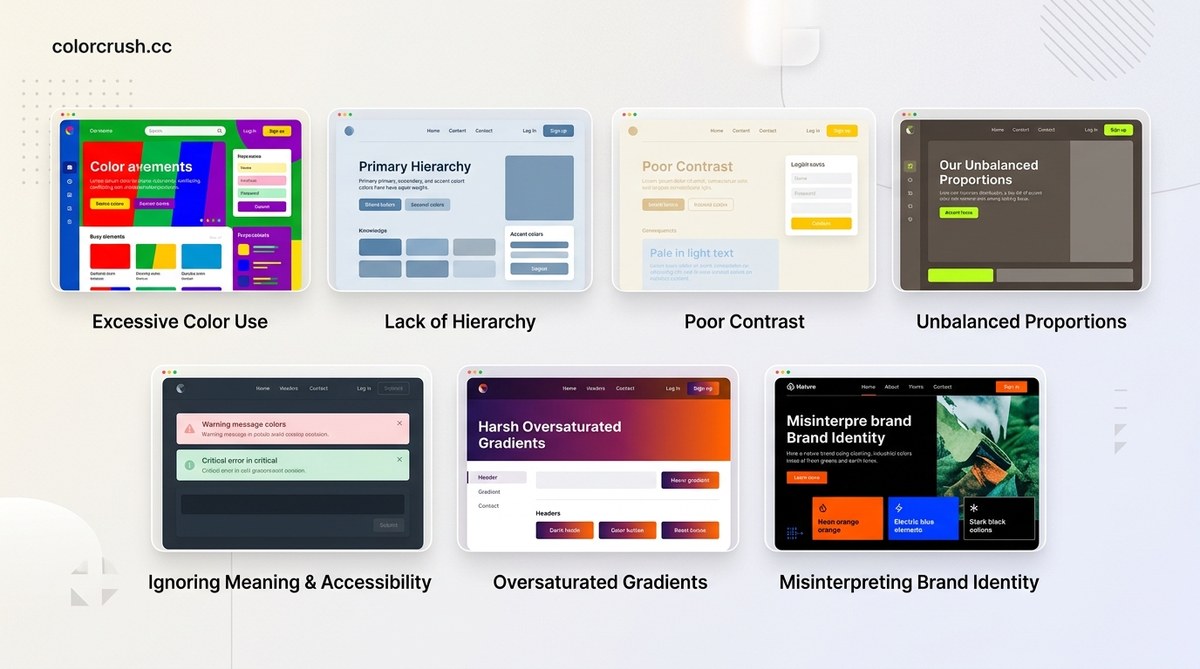
You open a portfolio from a designer you admire. The layout is clean. The typography is sharp. But something feels off. It looks like it was built in 2019. The colors are the culprit. Outdated color choices age a product faster than any other design element. Users may not name it, but they feel it. A dated palette makes a brand feel untrustworthy or lazy.
The good news is that fixing these mistakes is straightforward. You do not need a degree in color theory. You just need to know what to look for and how to adjust. Let us walk through the seven most common UI color palette mistakes that are likely holding your designs back.
Outdated UI color palettes share seven patterns: overusing pure grays, ignoring contrast for accessibility, relying on saturated flat colors, avoiding neutrals, mismatching undertones, forgetting dark mode, and using too many hues. Each mistake has a simple fix that instantly modernizes your interface and improves usability.
Overusing Pure Grays
The fastest way to date a UI is to use pure grays like #999999 or #CCCCCC for text, borders, and backgrounds. This was the default in early material design and Windows 95. Real life does not have pure gray. Shadows have blue or warm undertones. Concrete has green or brown hints.
When you use a true neutral gray next to a vibrant accent color, the gray looks dead. It flattens the entire interface.
The fix: Shift your grays slightly toward a hue. For a modern SaaS dashboard, try a cool gray with a hint of blue like #5B6E8A. For a warmer brand, use a gray with a touch of beige like #8A7B6B. This creates depth without adding a new color.
If you want to see how this principle works in practice, read about choosing the perfect UI colors to enhance user experience.
Ignoring Contrast for Accessibility
This mistake appears in two places: text on backgrounds and interactive elements. Light gray text on a white background looks elegant on a monitor with perfect calibration. On a phone in direct sunlight, it becomes invisible.
| Element | Bad Contrast | Good Contrast |
|---|---|---|
| Body text | #767676 on #FFFFFF |
#4A4A4A on #FFFFFF |
| Button text | #FFFFFF on #FFCC00 |
#1A1A1A on #FFCC00 |
| Link text | #6666CC on #F0F0F0 |
#2B5CAD on #F0F0F0 |
WCAG 2.2 requires a minimum contrast ratio of 4.5:1 for normal text. Many designers ignore this because they design on high brightness monitors. Test your palette on a low brightness setting before shipping.
The fix: Use a contrast checker tool. Adjust your text colors until they pass AA standards. Your design will look clearer and more trustworthy.
Using Only Fully Saturated Colors
Flat, fully saturated colors like pure red (#FF0000), pure blue (#0000FF), and pure green (#00FF00) feel like a child’s toy set. They lack sophistication. They also cause eye strain because the human eye struggles to focus on high saturation hues equally.
Modern design uses muted, complex colors. Think of a rich burgundy instead of red. A dusty teal instead of cyan.
The fix: Reduce saturation by 20 to 40 percent for your primary and secondary colors. Keep high saturation only for small accent elements like error states or sale badges. This technique is central to creating stunning color palettes with expert tips for every project.
Avoiding Neutrals and Whitespace
Some designers try to make every part of the UI colorful. They tint every background, every divider, every card. The result looks busy and chaotic. It also makes it impossible for users to know where to look.
“White space is not wasted space. It is the breathing room that makes your color choices matter.” — A practical rule from the design team at Vercel.
Neutral areas let accent colors shine. If your entire interface is saturated, there is no focal point. The user’s eye wanders without landing anywhere important.
The fix: Design with at least 60 percent neutral space (white, off-white, or very light gray). Reserve your boldest color for one primary action per screen. For more on this approach, check out the guide on mastering color harmony to elevate your design projects.
Mismatching Undertones
This is the most subtle mistake. You pick a warm red like #D94A4A and pair it with a cool blue like #3B82F6. On their own, each color looks fine. Together, they clash because their undertones fight each other.
Warm colors have yellow or orange undertones. Cool colors have blue or purple undertones. When you mix them without intention, the UI feels disjointed.
The fix: Choose a temperature for your palette. If your brand is warm, select all colors from the warm side of the wheel. If it is cool, stay in the blue-green family. You can add one small accent from the opposite temperature for contrast, but keep it limited. Learn more about this balance in mastering color combinations to elevate your design projects.
Forgetting Dark Mode
In 2026, most operating systems default to dark mode. Users expect apps to follow. A palette that looks great on white can break on black. Light blue shadows become invisible. Red text vibrates painfully.
The fix: Design your dark mode palette separately. Do not just invert colors. Use lighter tints of your brand colors for backgrounds. Use pure white sparingly. Test every color combination in both modes.
Here are three steps to build a dual palette:
- Map your light mode colors to a 0 to 100 scale for lightness.
- For dark mode, shift backgrounds to 10 to 20 percent lightness and text to 80 to 90 percent.
- Reduce saturation on backgrounds by half to avoid glow effects.
Using Too Many Distinct Hues
A common trap is to include five or six different hues in a single palette. A blue primary, a green secondary, a red error, a yellow warning, a purple link, and an orange accent. The result looks like a box of crayons exploded on the screen.
Users cannot remember that many color associations. They lose trust because the system feels inconsistent.
The fix: Limit your palette to three hues maximum. One primary, one secondary, and one accent. Use tints and shades of those hues for everything else. If you need a red for errors, use a red that shares the undertone of your primary color.
This constraint is the foundation of transforming your visual projects with expert color palette strategies.
A Practical Audit Process
You can fix a dated palette in one afternoon. Follow this numbered process:
- Audit your current palette. List every hex value. Check for pure grays and fully saturated colors.
- Test contrast. Run your text and background pairs through a contrast checker. Fix any that fail AA.
- Check undertones. Put all your colors on one screen. Does any pair feel off? Adjust the offending color’s hue slightly.
- Reduce hues. If you have more than three distinct hues, consolidate. Use tints of your primary instead of a new hue.
- Design dark mode. Create a separate dark palette. Test it on an actual device.
- Get feedback. Show the new palette to someone who has not seen the old one. Ask them what mood it conveys.
Your Palette Is a Living System
A color palette is not a one-time decision. It grows as your product grows. The best designers revisit their palette every quarter. They check for drift. They test new accessibility standards. They make sure the colors still feel current.
Start with one fix today. Pick the mistake that bothers you most and correct it. Then move to the next. Small changes in your UI color palette will make your entire product feel fresh, trustworthy, and ready for 2026.